How to make a workout video with or without a photo
Updated August 24, 2026 · 6 min read · By Joao Silva
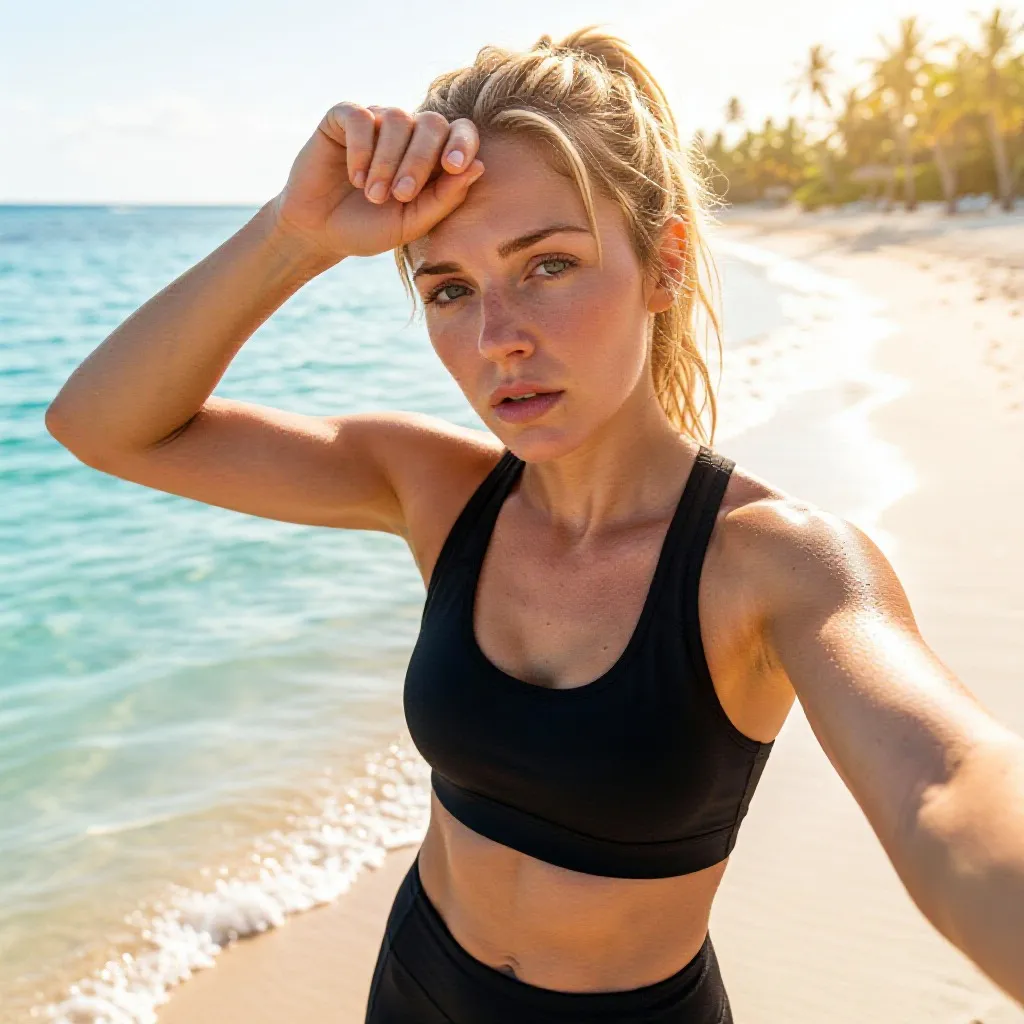
ActivArt gives you two ways to make a workout video. Under Video, Create from a blank canvas makes a new clip directly from your activity and saved visual choices, while Animate photo turns one original or generated photo into motion. Neither path needs a video prompt or a separate editor. Here is how to choose and use each one.
Choose the video that tells your workout story
Create from a blank canvas under Video builds a portrait clip without a starting image. It combines the activity type with the same visual choices that guide photo-free artwork, including framing, athlete appearance, gear, scenery, weather, lighting, mood, style, and colour palette.
Animate photo under Video starts from one original or generated photo and keeps its orientation. ActivArt uses that photo as a visual reference while applying the same style, effects, activity controls, and stats as Create under Image directly to the generated clip. The uploaded photo is not forced to appear as the first video frame. GPS route and elevation videos are different: they draw measured activity data over time on your device.
| Video type | Best for | Source |
|---|---|---|
| Create from a blank canvas | Making a new workout scene with no photo | Activity type and saved visual choices |
| Animate photo | Styling and bringing one photo to life | One original or generated photo |
| GPS route video | Showing the shape and progress of a route | GPS activity data |
| Elevation video | Showing how a climb builds | Elevation activity data |
What you need before you start
Create from a blank canvas under Video needs only an activity and your saved visual choices. It does not upload a starting photo. To use Animate photo instead, select exactly one original or generated photo. If your saved appearance, gear, or camera choices conflict with an original photo, ActivArt asks whether to preserve the photo or apply the full style.
Video generation needs an internet connection and uses its own rolling allowance. The Free plan includes limited use, while Premium includes more. Open Membership in the app to see your current usage and the next reset time.
Option 1: Create from a blank canvas
Open the activity, review your visual choices, tap Generate, then choose Create from a blank canvas under Video. ActivArt builds the athlete, setting, camera, style, movement, and sound from the activity and those choices on a portrait canvas. No written prompt or starting image is required.
When stats are enabled, the clip uses your selected figures, custom labels, placement, and visual treatment. The video instructions keep the exact characters and placement stable through the take.
Option 2: Transform a selected photo
Select one original or generated photo, open Generate, and choose Animate photo under Video. ActivArt keeps the source orientation and uses the same style, effects, activity controls, and stats that Create under Image would apply to that photo. When the selected image is a selfie, face detection activates the same identity and facial-feature preservation used for images.
If Animate photo is unavailable, confirm that exactly one photo is selected. The option also depends on video generation being available at that moment.
Let the video finish
You do not need to hold the generation screen open. The job can continue in the background, and ActivArt sends a notification when the video is ready. If the app closes or the download is interrupted, it can resume from the same job.
Photo-free generation sends no source image. When you use Animate photo under Video, the selected image is kept private only while the job runs, then deleted. The finished private video remains available for a short recovery window so you can complete an interrupted download.
Preview and share
Preview the result in ActivArt, save it, or share it through the apps on your phone. A short animated clip works naturally in Reels, TikTok, Stories, and group chats where a still image would otherwise pass quickly.
ActivArt adds signed machine-readable provenance to the exported video. Keep that marker intact where possible, and disclose the AI origin when you publish realistic generated or transformed content.
How to get a better result
For photo-free video, choose one clear athlete, an environment that suits the activity, and a camera framing that leaves room for motion. A focused visual idea usually holds together better than a scene packed with competing subjects.
For Animate photo under Video, choose a source image that already works as a still. Strong contrast around the athlete, a readable pose, and one clear point of attention give the animation a better foundation.
Watch fine details during preview. Generated motion can reinterpret small text, hands, logos, or background objects from frame to frame. If those details are central to the post, compare the video with the original image before sharing.
Turn your next workout into a short video